


The best monitor depends on the one thing you sit down to do, and the answers diverge fast: the panel that makes a designer's color work trustworthy is a poor gaming monitor, and the 5K display that makes text crisp on a MacBook is wasted on a PS5.
We sorted the nine picks by job, from a $140 screen that lives in a laptop bag to a $1,500 ultrawide that replaces two monitors.
Monitors also sat out the 2026 shortage, which runs against everything else we have written this year. Panel production is a separate industry from DRAM, so while graphics cards doubled and memory went to four or five times its 2025 price, monitors kept costing what monitors cost. A 27-inch 1440p screen at 180 Hz is $150 right now. If your budget got wrecked by the rest of the build, this is the one part of the desk where it still goes far.
ASUS ProArt PA27JCV 27-inch 5K
27" · 5120 × 2880 · IPS · 99 % DCI-P3 · Calman verified, Delta E<2 · USB-C 96 W · Auto KVM
The PA27JCV gives you color you can sign off on, at a resolution that makes the pixels disappear. 5K on 27 inches means 218 pixels per inch, so type and vector edges stop showing stair-steps, and the panel ships factory-calibrated against Calman with 99 % DCI-P3 coverage.
- Factory calibration you can trust for client work, verified against Calman
- 218 PPI removes the pixel structure that makes 4K/27 look soft up close
- 96 W USB-C power delivery drives most laptops over the same cable as the video
- Auto KVM switches a keyboard and mouse between two machines, and the warranty runs five years
- 60 Hz, so it is a working display and not a gaming one
- 5K over a single cable needs DisplayPort 1.4 with DSC or Thunderbolt on the host
- Hardware calibration is absent at this price; you calibrate in software
Two things separate a color-work monitor from a good monitor: gamut coverage wide enough to hold the space you deliver in, and a factory calibration you did not have to do yourself. The PA27JCV has both, at 99 % DCI-P3 with Calman verification out of the box.
The resolution matters more than the spec sheet suggests. At 27 inches, 4K works out to about 163 PPI, which is an awkward number: too dense for crisp 1:1 rendering, not dense enough to pixel-double cleanly. 5K is 218 PPI, which is exactly twice the 109 PPI that interface design has assumed for years, so everything renders at a clean 2× with no fractional scaling. The difference shows up on type and vector edges before it shows up anywhere else.
Samsung ViewFinity S8 27-inch 5K
27" · 5120 × 2880 · 218 PPI · USB-C 90 W · built-in LAN · HDR10+

The ViewFinity S8 gives you the same 218 PPI Apple charges $1,599 for, at $590. macOS is the operating system most sensitive to pixel density, and this is the cheapest 5K panel from a major display brand that gives it what it wants.
- Retina-class density without Apple's price
- Built-in Ethernet port, which the Studio Display does not have
- Connects over USB-C, so one cable carries video and power
- Samsung states the 218 PPI figure on the listing, so there is no guesswork
- No built-in webcam or speaker array, if that is why you wanted the Apple one
- Samsung's on-screen menus are worse than Apple's no-menu approach
- 60 Hz, like the Studio Display
The reason Mac users end up spending Apple money on a display is scaling. macOS renders its interface at 2× and downsamples, which looks superb at 218 PPI and mediocre at anything much below it. A 27-inch 4K panel lands at 163 PPI, which forces macOS into a fractional scale where text picks up a soft edge that Windows users mostly do not see, because Windows scales differently.
Scaling is why a 5K panel is worth hunting down for a Mac. Against the Studio Display you give up the webcam, the speakers and the aluminum, and you keep the pixel density that made you look at it in the first place. If you want the ASUS ProArt above instead, it is $60 more with better color credentials and the same resolution.
LG 40WP95C-W 40-inch 5K2K UltraWide
40" · 5120 × 2160 · 21:9 · Nano IPS · 98 % DCI-P3 · Thunderbolt 4, 96 W · curved
The LG is one screen that ends the two-monitor compromise. At 5120 × 2160 you get the horizontal room of two 27-inch displays with no bezel down the middle, which is the thing that breaks concentration in a dual setup.
- Two full-size windows side by side with room for a third narrow one
- No center bezel cutting through your field of view
- Thunderbolt 4 carries video, data and 96 W of laptop power on one cable
- 98 % DCI-P3, so it holds up for everyday color work as well
- $1,500 buys a lot of monitor elsewhere; this is the premium pick
- Curved 21:9 is divisive, and it complicates wall mounting
- At 140 PPI, text is less crisp than the 5K 27-inch panels above
The case for one wide screen over two: the bezel. A dual-monitor setup puts a hard black line exactly where your eye travels most, and you spend the day working around it by keeping one screen primary and the other for reference. A 5120 × 2160 panel gives you the horizontal pixels of two 1440p screens on one continuous surface, so a browser and an editor sit side by side at full width with nothing between them.
The counterargument is price. Two decent 27-inch 1440p monitors cost about $300 together and give you two-thirds of the pixels. You are paying $1,200 more for continuity, a better panel and one cable. That is a real trade and not everyone should take it. If $1,500 is too much, the INNOCN 40-inch below does the same shape for $800.
ARZOPA 16.1-inch 2.5K Portable Monitor
16.1" · 2560 × 1440 · 180 Hz · 107 % sRGB · USB-C · kickstand cover

The ARZOPA is a second screen that lives in the laptop bag and runs off one USB-C cable. At 2560 × 1440 it is sharp enough for real work beyond a chat window, and 180 Hz is an unusual bonus at this size.
- Portable for real, with a kickstand cover instead of a separate stand
- 1440p rather than the 1080p most portables ship, so text stays readable
- One USB-C cable for video and power on most laptops
- 107 % sRGB is better color than this category usually bothers with
- Drawing power from the laptop drains its battery noticeably
- Panel brightness is built for indoor use, not a sunny café table
- ARZOPA is a portable-monitor specialist, not a display brand with depth of support
The failure mode of cheap portable monitors is 1080p on a 15 or 16-inch panel, which lands around 140 PPI and looks coarse next to the laptop screen you are using it beside. 1440p on 16.1 inches is about 182 PPI, close enough to a modern laptop display that the two do not fight each other.
Check one thing on your laptop before buying: whether its USB-C ports carry DisplayPort Alt Mode. Most machines from the last five years do, but some budget Windows laptops wire USB-C for data and charging only, and on those this needs the HDMI input and a separate power feed. If you want this at a desk rather than in a bag, buy the Dell below instead.
Philips Evnia 27M2N8500 QD-OLED
27" · 2560 × 1440 · QD-OLED · 360 Hz · 99 % DCI-P3 · HDMI 2.1
The Evnia delivers QD-OLED at 360 Hz for $400, against $700 for the ASUS panel of the same type further down this page. Per-pixel lighting means black that a backlight cannot fake, and 1440p at 27 inches is still the resolution a mid-range GPU can drive at high frame rates.
- OLED black levels, which no IPS or VA panel can approach
- 360 Hz with the near-instant pixel response OLED gives you
- 1440p is the resolution current mid-range GPUs sustain at high frame rates
- $300 less than the ASUS ROG QD-OLED with the same panel type
- OLED text fringing is visible on small fonts, so it is a weaker desktop-work screen
- Burn-in risk with static HUDs and taskbars, mitigated but not eliminated
- Peak brightness in a bright room trails a good IPS panel
1440p rather than 4K is a deliberate choice for gaming. Driving 4K at high refresh needs a card from the top of the GPU market, and in 2026 those prices are indefensible. A 1440p 360 Hz panel pairs with a mid-range card and delivers frame rates you can feel.
The QD-OLED caveat worth knowing: subpixel layout means small black-on-white text picks up a faint color fringe. For gaming and video it is invisible. If this screen is also going to be where you write code eight hours a day, an IPS panel will treat your eyes better, and the Acer below costs $250 less.
LG UltraGear 27G810A-B 27-inch 4K
27" · 3840 × 2160 · IPS · Dual Mode 4K 180 Hz / FHD 360 Hz · DisplayHDR 400 · FreeSync Premium · G-SYNC Compatible

A PS5 and an Xbox Series X both output 4K at 120 Hz, and this panel runs 4K at up to 180 Hz with both FreeSync Premium and G-SYNC compatibility, so it has headroom past what either console asks for. It doubles as a sharp desktop display when the console is off.
- 4K at 180 Hz leaves headroom over the 120 Hz a console asks for
- Dual Mode drops to 1080p at 360 Hz when a competitive game wants frames
- FreeSync Premium and G-SYNC compatibility both certified, so tearing is handled
- Doubles as a competent 4K desktop monitor when the console is off
- LG does not state the HDMI port version on the listing, so confirm it is 2.1 if console 4K120 is the whole reason you are buying
- Console-first buyers may want more than 27 inches from a sofa distance
- IPS black levels cannot match the OLED gaming pick above
On a console monitor, the specification to check first is the HDMI port version. Both current consoles output 4K at 120 Hz, which needs HDMI 2.1 bandwidth; on an HDMI 2.0 panel the console negotiates down to 4K60 without telling you, and buyers routinely never find out. Plenty of monitors sold as 4K gaming displays still ship HDMI 2.0.
LG does not state the HDMI version anywhere on the Amazon listing. The panel runs 4K at 180 Hz, which is well past what HDMI 2.0 can carry, so the bandwidth exists somewhere in the connector set. If console 4K120 is the entire reason you are buying, confirm the port version with LG or the retailer before you order.
Size is the other consideration and it depends on where you sit. At a desk, 27 inches at 4K is right. On a sofa at TV distance, a 27-inch panel is too small and a television is the better buy. This pick assumes the console lives on the desk.
Dell UltraSharp U2723QE 27-inch 4K
27" · 3840 × 2160 · IPS · USB-C 3.2 Gen 2 hub · 90 W PD · 60 Hz · 400 nits

The U2723QE replaces a docking station. One USB-C cable carries video, charges the laptop at 90 W, and feeds the USB hub built into the back, so arriving at the desk is a single connection.
- One cable for video, 90 W of power and the peripherals on the built-in hub
- DisplayPort output as well as input, so a second monitor daisy-chains
- UltraSharp is Dell's business line, with the support terms that go with it
- Removes the need for a separate dock, which closes most of the price gap
- $639 is a lot next to a 4K panel with no hub
- 60 Hz, so it is a work monitor and nothing else
- 90 W will not fully sustain a high-drain 16-inch laptop under load
Compare this against a monitor plus a dock rather than against a monitor alone. A Thunderbolt dock is its own purchase, so the effective premium over a plain 4K USB-C panel is smaller than the sticker suggests, and you lose a box and three cables from the desk.
The Dell and the portable ARZOPA solve different problems: the ARZOPA is a screen you carry, and the Dell anchors a desk you return to. If you work from one place most days and travel occasionally, buy the Dell and treat the portable as luggage.
Acer Nitro KG271U 27-inch 1440p
27" · 2560 × 1440 · IPS · 180 Hz · 0.5 ms · 99 % DCI-P3 · FreeSync
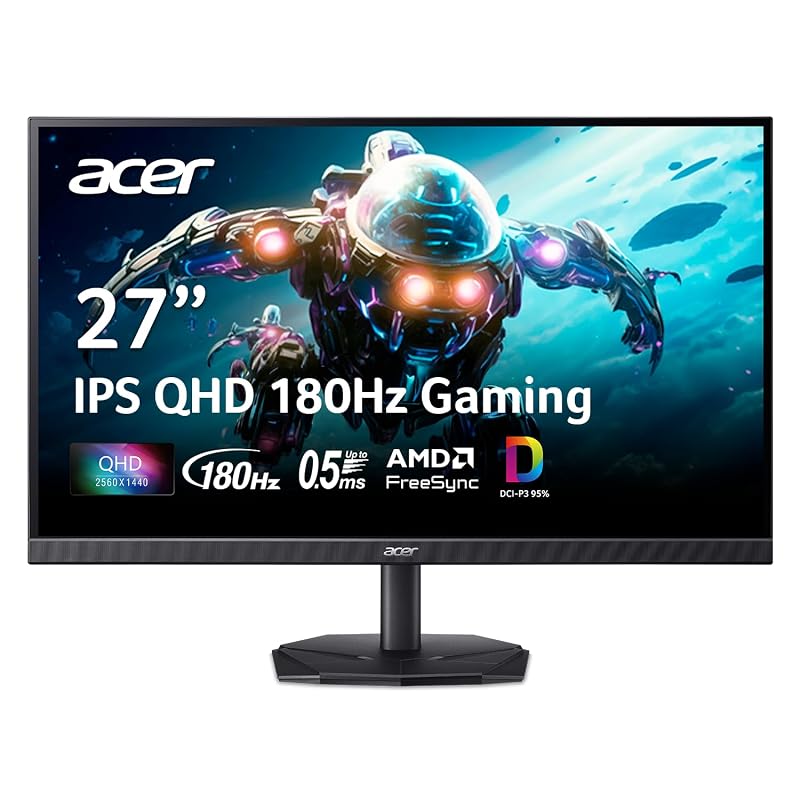
The Nitro puts 1440p at 180 Hz on an IPS panel for $150, from a brand with a support operation behind it. It sits near the bottom of the range and, for most people buying a first real monitor, at the sensible end of it.
- 1440p is the right resolution for 27 inches; 1080p at this size looks coarse
- 180 Hz and IPS at $150 was a $400 combination three years ago
- Acer support is a real thing, unlike most screens at this price
- 99 % DCI-P3 means it is not a washed-out budget panel
- Stand adjustment is limited; budget for a VESA arm if you want height
- No USB-C, so a laptop needs HDMI or DisplayPort plus separate power
- Backlight uniformity at this price is a lottery
Two rules for buying cheap: get 1440p rather than 1080p at 27 inches, and buy IPS rather than VA unless you specifically want contrast over viewing angles. 1080p stretched across 27 inches lands near 82 PPI, and you will see the pixel grid from a normal desk distance.
At $150 you give up the stand and the guarantee of a clean backlight. The stand is solvable with a $30 VESA arm. The backlight is a lottery every manufacturer plays at this price, so buy somewhere with a return policy and check a full-white and full-black screen in the first week.
Corsair Xeneon Edge 14.5-inch Touchscreen
14.5" · 2560 × 720 · 60 Hz · five-point multi-touch · HDMI + USB-C · magnet or 360 mm fan mount

Your main screen goes back to being all work. Sensor readouts, a chat column and the now-playing controls move onto a 14.5-inch strip that mounts inside the case behind the glass, hangs off the side of the desk, or stands under the main panel.
- Takes the sensor panel, the chat window and the music controls off your primary display
- Fourteen magnets in the housing plus four screws on 360 mm fan positions, so most modern cases mount it without a bracket
- The included stand puts it on the desk in portrait or landscape if you would rather not open the case
- Five-point capacitive touch, so you tap a widget instead of dragging the mouse across two screens
- $250 is what a capable 27-inch 1440p monitor costs, and this only makes sense on a desk that already has one
- 2560 by 720 at 60 Hz rules it out as a primary display, so it adds to a desk rather than replacing anything on it
- Corsair does not state the panel type or the brightness on the listing
Corsair built this for one job. A 2560 by 720 strip works badly as a main display, and that proportion suits the things that keep stealing a corner of your real one: a CPU and GPU sensor readout, one Discord channel, the transport controls for whatever is playing.
You get three places to put it. Fourteen magnets in the housing hold it against steel inside the case, four corner screws line up with the 360 mm fan mounting positions most current cases already have, and the bundled stand handles the desk in either orientation. Touch is five-point capacitive, so a chat channel scrolls the way it does on a phone.
Buy it after the main panel is sorted. The other eight screens here change how the work looks; this one moves the distractions off it, which is worth $250 once you already own a display you like and a case with a window.
The numbers.
| ProArt PA27JCV | ViewFinity S8 | LG 40WP95C | Evnia 27M2N8500 | UltraGear 27G810A | Dell U2723QE | Acer KG271U | |
|---|---|---|---|---|---|---|---|
| Job | Color work | Mac desk | Multitasking | PC gaming | Console | One-cable desk | Budget |
| Size | 27" | 27" | 40" | 27" | 27" | 27" | 27" |
| Resolution | 5120×2880 | 5120×2880 | 5120×2160 | 2560×1440 | 3840×2160 | 3840×2160 | 2560×1440 |
| Panel | IPS | IPS | Nano IPS | QD-OLED | IPS | IPS Black | IPS |
| Refresh | 60 Hz | 60 Hz | 72 Hz | 360 Hz | 4K 180 Hz | 60 Hz | 180 Hz |
| Connection | USB-C | USB-C + LAN | Thunderbolt 4 | HDMI/DP | HDMI/DP | USB-C hub | HDMI/DP |
| Power delivery | 96 W | 90 W | 96 W | No | No | 90 W | No |
| Street price | $649 | $590 | $1,500 | $400 | $600 | $639 | $150 |
Other strong options.
INNOCN 40-inch 5K2K Ultrawide
The same 5120 × 2160 shape as the LG for $800 instead of $1,500. You give up the LG's panel quality, Thunderbolt implementation and warranty depth, and INNOCN is a value brand rather than a display house. The pick if the ultrawide layout is what you want and $1,500 is not a number you will say out loud.
View on Amazon →ASUS ROG Strix XG27ACDNG QD-OLED
The ROG Strix sits in the same 1440p QD-OLED category as the Philips, at $700 against $400. ASUS brings a better stand, a longer burn-in warranty and more thorough firmware. Worth the $300 if this is the monitor you will keep for five years, and hard to justify otherwise.
View on Amazon →ViewSonic VP2488-4K 24-inch Thunderbolt 4
The VP2488-4K is a color-managed 4K panel in 24 inches with Thunderbolt 4 and 100 W power, at $550. The small size is the point for some people: 4K on 24 inches is about 184 PPI, sharper than 4K on 27. The pick for a color-critical second screen or a small desk.
View on Amazon →The buying guide.
Pixel density is the spec nobody quotes
Resolution alone tells you nothing without the screen size. The number that matters is pixels per inch, and the thresholds are worth memorizing: 1080p on 27 inches is 82 PPI and looks coarse, 1440p on 27 is 109 PPI and is the mainstream sweet spot, 4K on 27 is 163 PPI, and 5K on 27 is 218 PPI. macOS in particular wants that 218 figure, because it renders at 2× and 218 is exactly double the 109 the interface was designed around.
The one spec consoles need
HDMI 2.1. A PS5 or Xbox Series X outputs 4K at 120 Hz, and that needs HDMI 2.1 bandwidth. On an HDMI 2.0 monitor the console silently negotiates down to 4K60, and nothing on screen tells you it happened. Monitors marketed as 4K gaming displays still ship HDMI 2.0 regularly, so check the port version rather than the marketing.
OLED for games, IPS for text
QD-OLED gives you per-pixel black that no backlit panel can match, and it is the right choice for games and video. Its weakness is small text: the subpixel layout puts a faint color fringe on black-on-white type, which you notice by hour three of writing. If one monitor has to do both jobs, an IPS panel is the safer compromise. If you have room for two, put the OLED where the games are.
One wide screen or two normal ones
A 5120 × 2160 ultrawide costs far more than two 1440p monitors and gives you 50 % more pixels. It buys the absence of a bezel down the middle of your field of view, plus one cable and one stand. If you work across two documents constantly, the continuity is worth real money. If your second screen mostly holds a chat window and a music player, buy two cheap ones and keep the difference.
USB-C is three different things
A USB-C port on a monitor might carry video, or power, or a downstream hub, and the cheap ones carry fewer of those than you assume. For a single-cable laptop desk you need DisplayPort Alt Mode for the picture and Power Delivery at a wattage your laptop accepts, and 90 W is the practical floor for a 14-inch machine under load. Check the laptop end too: some budget Windows laptops wire USB-C for data and charging only, with no video output at all.
Monitors escaped the shortage
Everything else on a 2026 desk got more expensive. Panel manufacturing has no dependence on the DRAM supply that pushed memory to four or five times its 2025 price and dragged graphics cards up with it, and monitor prices show it: 1440p at 180 Hz costs $150, which is roughly what it cost last year. If you are rebuilding a desk on a budget that the GPU already mauled, spend here without flinching and cut somewhere else.
FAQ.
For a Mac, yes, because of scaling. macOS renders its interface at 2× and downsamples, which lands perfectly on a 218 PPI 5K panel and awkwardly on a 163 PPI 4K one, where text picks up a soft edge. Windows handles fractional scaling differently and Windows users are far less bothered by 4K at 27 inches.
HDMI 2.1, and then everything else is preference. Both consoles output 4K at 120 Hz, which HDMI 2.0 cannot carry, so an HDMI 2.0 monitor drops you to 4K60 without any warning. Add VRR support to remove tearing, and plan on headphones or a soundbar because monitor speakers are uniformly poor.
Two 27-inch 1440p monitors cost about $300 together and give you two-thirds of the pixels of a $1,500 ultrawide. The ultrawide buys continuity: no bezel through the middle of your work, one cable, one stand. If you read across two documents all day that is worth paying for. If your second screen holds Slack, it is not.
It is a workable compromise. QD-OLED subpixel layout puts a faint color fringe on small black-on-white text that becomes tiring over a long writing session, and static taskbars carry some burn-in risk even with modern mitigation. For gaming and video it is the best picture available. For an eight-hour text job, buy IPS.
Because of what it costs to drive 4K. High frame rates at 4K need a card from the expensive end of a GPU market that doubled this year, whereas 1440p at 360 Hz pairs with a mid-range card and delivers frame rates you can feel. Resolution is the easiest place to buy back performance you would otherwise pay a lot of money for.
No, and it is the exception on the whole desk. Panel production does not draw on the DRAM supply that sent memory to four or five times its 2025 price and pulled graphics cards up behind it. A 27-inch 1440p 180 Hz monitor costs $150 today, in line with last year.
Color work: the ProArt PA27JCV.
On a Mac: the ViewFinity S8.
Gaming: the Evnia.
On a budget: the Acer Nitro.
Start from the job. If your work ships only when the color is right, the ProArt at $649 is the one with the calibration behind it. If the machine is a Mac, the Samsung 5K delivers the density macOS wants for $1,009 less than Apple asks. If you play on a PC, the Philips QD-OLED at $400 is the most picture per dollar on this page, and if you play on a console, check for HDMI 2.1 and stop reading spec sheets. And if the rest of the build already emptied the budget, the $150 Acer is a good 1440p monitor, at a price that would not have bought one three years ago.